
How to Record a Google Meet Meeting
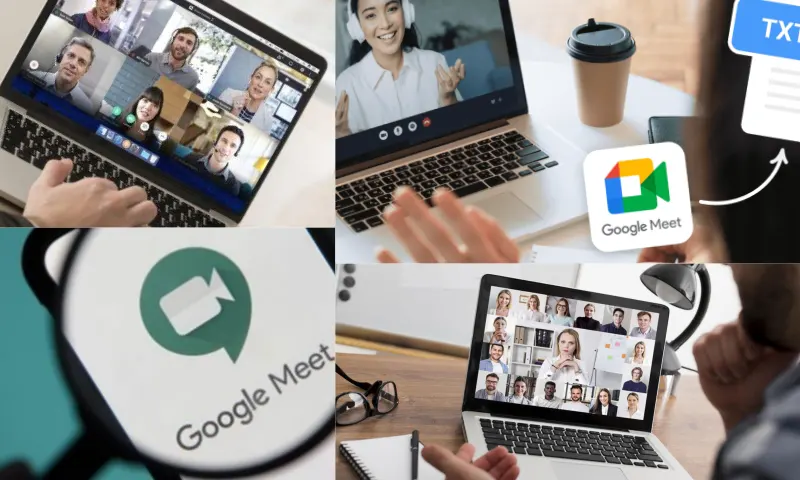
Google Meet recording allows meetings to be saved and watched later. To record, the meeting must first start. During the meeting, click the three dots at the bottom of the screen and select "Start recording" from the menu that appears. When the recording begins, participants will receive a notification that a recording is in progress. After the meeting ends, you can stop the recording by selecting "Stop recording" from the same menu. Recordings will be saved to your Google Drive account. For information on this topic and to ask your questions, you can check related online companies on web pages and examine them in detail.
Which plans include the Google Meet recording feature?
The Google Meet recording feature is only available on specific plans. This feature is available for Google Workspace users and is included in the Business Standard, Business Plus, Enterprise, Education Plus, and Teaching and Learning Upgrade plans. If you are an individual user or use the Google Workspace Essentials or Business Starter plan, you will not be able to use this feature. Therefore, it is important to choose a suitable plan to be able to record.
How to improve audio and video quality during Google Meet recording?
Improving audio and video quality during Google Meet recording is crucial to enhance the viewer experience. First, having a good internet connection is critical. If possible, using a wired connection provides a more stable experience than Wi-Fi. You can ask participants to reduce background noise before the meeting. To improve audio quality, it is important to use a quality microphone and ensure the speaker's voice is transmitted clearly. To improve video quality, it is beneficial to hold the meeting in a well-lit environment and position the camera at eye level. With these simple measures, you can achieve more professional results in your Google Meet recordings.